32 Claude Code Tipps: Von den Grundlagen bis zur Profi-Ebene
Eine umfassende Sammlung praktischer Tipps, um das Beste aus Claude Code herauszuholen — von benutzerdefinierten Statuszeilen und Spracheingabe bis hin zu Container-Orchestrierung und Multi-Modell-Workflows.
32 Claude Code Tipps: Von den Grundlagen bis zur Profi-Ebene
Claude Code ist für viele Entwicklerinnen und Entwickler schnell zu einem zentralen Bestandteil des Workflows geworden. Doch die meisten kratzen kaum an der Oberfläche dessen, was damit möglich ist. Dieser Leitfaden enthält 32 praktische Tipps — von kleinen Komfortverbesserungen bis hin zu fortgeschrittenen Techniken wie dem Betrieb von Claude Code in Containern und der Orchestrierung mehrerer KI-Modelle.
Tipp 0: Passe deine Statuszeile an
Du kannst die Statuszeile von Claude Code so anpassen, dass nützliche Informationen auf einen Blick erscheinen — aktuelles Modell, Verzeichnis, Git-Branch, Anzahl uncommitteter Dateien, Sync-Status und ein Fortschrittsbalken für die Token-Nutzung. Eine zweite Zeile kann deine letzte Nachricht anzeigen, um den Kontext schnell wiederherzustellen:
Opus 4.5 | dir:Daft | fix/colab-pydantic-pickle (0 files, synced) | █░░░░░░░░░ 12% of 200k tokens
Last: Okay, und diesen Teil verstehe ich nicht ganz. Was ist Type Checking und warum nutzen wir es hier?
Das ist besonders nützlich, um die Kontextnutzung zu überwachen und sich daran zu erinnern, worum es in einer Konversation ging, wenn du zwischen Tabs wechselst.
Tipp 1: Sprich mit Claude Code per Stimme
Spracheingabe ist für die meisten Menschen deutlich schneller als Tippen. Unter macOS funktionieren lokale Transkriptionstools wie superwhisper, MacWhisper oder quelloffene Alternativen problemlos. Selbst wenn die Transkription Fehler enthält, ist Claude klug genug, deine Absicht zu interpretieren.

In diesem Beispiel wurden falsch transkribierte Wörter wie „ExcelElanishMark" und „advast" korrekt als „exclamation mark" und „Advanced" interpretiert.
Stell es dir wie das Senden von Sprachnachrichten an eine Kollegin oder einen Kollegen vor. Du brauchst kein perfektes Diktat — sprich einfach natürlich. Wenn du dir den Raum mit anderen teilst, reicht auch leises Sprechen in die Kopfhörer.
Tipp 2: Zerlege große Probleme
Das ist grundlegend. Es ist dasselbe Prinzip, das großartige Softwareentwicklerinnen und -entwickler ausmacht — Dekomposition.
Wenn Claude Code eine komplexe Aufgabe nicht in einem Rutsch lösen kann, zerlege sie. Ist eine Teilaufgabe immer noch zu schwierig, zerlege sie weiter. Mach so lange weiter, bis alles lösbar ist.

Anstatt direkt von A nach B zu springen:

Geh von A nach A1, dann A2, dann A3, und schließlich nach B.
Beispiel: Der Aufbau eines Sprachtranskriptionssystems umfasst das Herunterladen von Modellen, die Sprachaufnahme, die Audiotranskription, das Setzen des Cursors und die Benutzeroberfläche. Statt alles auf einmal anzugehen, baue jeden Teil unabhängig — einen eigenständigen Modell-Downloader, einen eigenständigen Recorder, einen eigenständigen Transkribierer — und setze sie anschließend zusammen.
Deine Problemlösungs- und Engineering-Fähigkeiten sind weiterhin enorm wichtig. Claude Code ist für sich genommen mächtig — strukturiertes Denken beim Einsatz macht es jedoch dramatisch effektiver.
Tipp 3: Nutze Git und GitHub CLI wie ein Profi
Lass Claude deine Arbeit mit Git und GitHub CLI übernehmen. Committen (kein händisches Schreiben von Commit-Nachrichten mehr), Branchen, Pullen, Pushen — alles davon.
Eine gute Praxis: pull automatisch erlauben, aber für push eine Bestätigung verlangen, da Push das Remote beeinflusst.
Bei der GitHub CLI (gh) gewöhn dir an, Draft-PRs zu erstellen. So kann Claude die PR-Erstellung mit geringem Risiko übernehmen — du überprüfst alles, bevor du den PR als bereit markierst.
Tipp 4: Kontext ist wie Milch — am besten frisch
Claude Code arbeitet am Anfang einer Konversation am besten. Wenn sich Kontext anhäuft, kann die Qualität nachlassen. Starte für jedes neue Thema eine neue Konversation — oder immer dann, wenn du einen Qualitätsabfall bemerkst.
Tipp 5: Bring Output aus deinem Terminal heraus
Kopieren aus dem Terminal ist nicht immer sauber. Hier sind bessere Wege:
/copy— Kopiert Claudes letzte Antwort als Markdown in die Zwischenablage- Clipboard-Pipe — Bitte Claude, unter macOS
pbcopyzu verwenden, um Output in die Zwischenablage zu schicken - In Datei schreiben — Lass Claude Inhalte in eine Datei schreiben und sie in deinem Editor öffnen. Für mehr Präzision kannst du eine Zeilennummer angeben
- URLs öffnen — Bitte Claude, Links mit dem
open-Befehl im Browser zu öffnen - GitHub Desktop — Bitte Claude, das aktuelle Repo in GitHub Desktop zu öffnen — besonders nützlich, wenn du in Nicht-Root-Verzeichnissen wie Worktrees arbeitest
Du kannst diese Wege auch kombinieren. Lass Claude zum Beispiel eine PR-Beschreibung in eine lokale Datei schreiben, bearbeite sie dort, prüfe sie selbst und füge sie dann zurück ein.
Tipp 6: Richte Terminal-Aliase ein
Da du nun viel Zeit im Terminal verbringst, richte dir kurze Aliase ein:
alias c='claude'
alias ch='claude --chrome'
alias gb='github'
alias co='code'
alias q='cd ~/Desktop/projects'
Kombiniere sie mit Flags: c -c setzt deine letzte Konversation fort, c -r zeigt die letzten Konversationen zum Fortsetzen an. Das funktioniert mit allen Aliasen (ch -c, ch -r usw.).
Tipp 7: Verdichte deinen Kontext proaktiv
Der Befehl /compact fasst deine Konversation zusammen, um Kontext freizugeben. Auto-Compaction wird ausgelöst, wenn der Kontext voll ist. Bei Opus 4.5 beträgt das Gesamtfenster 200k Tokens, wobei ~45k für Auto-Compaction reserviert sind und ~10 % von System-Prompt, Tools und Memory belegt werden.
Ein besserer Ansatz: Compaction manuell steuern. Bevor du neu startest, bitte Claude, ein Handoff-Dokument zu schreiben:
„Schreibe ein Handoff-Dokument, das erklärt, was du versucht hast, was funktioniert hat und was nicht, damit der nächste Agent mit frischem Kontext dort weitermachen kann, wo du aufgehört hast."
Claude erstellt eine Zusammenfassungsdatei. Prüfe sie, bitte bei Bedarf um Anpassungen, starte dann eine neue Konversation und übergib einfach den Dateipfad:
> experiments/system-prompt-extraction/NEXT-STEPS.md
Der frische Agent kann von dort fortfahren. In nachfolgenden Konversationen bittest du ihn jeweils, das Dokument für die nächste Übergabe zu aktualisieren.
Tipp 8: Vervollständige den Schreib-Test-Zyklus
Für autonome Aufgaben braucht Claude Code eine Möglichkeit, Ergebnisse zu verifizieren. Das Muster: Code schreiben, ausführen, Output prüfen, wiederholen.
Für interaktive Terminals (etwa beim Testen von Claude Code selbst) verwende tmux:
tmux kill-session -t test-session 2>/dev/null
tmux new-session -d -s test-session
tmux send-keys -t test-session 'claude' Enter
sleep 2
tmux send-keys -t test-session '/context' Enter
sleep 1
tmux capture-pane -t test-session -p
Mit einem solchen Test kann Claude Code git bisect ausführen und automatisch jeden Commit testen, um den zu finden, der einen Bug eingeführt hat.
Kreative Teststrategien
Für Web-Apps kannst du Playwright MCP, Chrome DevTools MCP oder Claudes native Browser-Integration (/chrome) nutzen. Playwright funktioniert in der Regel besser — es konzentriert sich auf den Accessibility Tree (strukturierte Daten) statt auf Screenshots, was es zuverlässiger macht.
Verwende Claudes native Browser-Integration nur dann, wenn du einen eingeloggten Zustand brauchst, ohne Zugangsdaten weiterzugeben, oder wenn du gezielt visuelles, koordinatenbasiertes Klicken benötigst.
Tipp 9: Cmd+A ist dein Freund
Wenn Claude eine URL nicht direkt erreichen kann (private Seiten, blockierte Seiten wie Reddit), markiere einfach alles, was du siehst (Cmd+A / Strg+A), kopiere es und füge es in Claude Code ein. Mit rohem Text-Input kommt es hervorragend zurecht.
Das funktioniert auch für Terminal-Output — alles markieren, kopieren, in Claude Code einfügen.
Tipp 10: Nutze Gemini CLI als Fallback für blockierte Seiten
Claude Codes WebFetch kann bestimmte Seiten nicht erreichen. Umgehe das, indem du einen Skill erstellst, der an die Gemini CLI delegiert — sie hat breiteren Webzugriff.
Das nutzt das tmux-Muster aus Tipp 8 — Session starten, Befehle senden, Output erfassen. Lege die Skill-Datei in ~/.claude/skills/reddit-fetch/SKILL.md ab.
Skills sind token-effizient, weil sie nur bei Bedarf geladen werden — anders als die CLAUDE.md, die in jede Konversation geladen wird.
Tipp 11: Investiere in deinen Workflow
Pflege deine CLAUDE.md. Baue eigene Tools. Lerne die Features kennen, die für dich wichtig sind.
Du musst es nicht übertreiben — schon eine saubere, kompakte CLAUDE.md, die dir hilft, deine Ziele zu erreichen, macht einen echten Unterschied. Das sind Investitionen in die Werkzeuge, mit denen du alles andere baust.
Tipp 12: Durchsuche den Konversationsverlauf
Der gesamte Konversationsverlauf von Claude Code wird lokal in ~/.claude/ gespeichert. Projektspezifische Konversationen liegen in ~/.claude/projects/ — die Ordnernamen basieren auf den jeweiligen Projektpfaden.
# Konversationen finden, die "Redis" erwähnen
grep -l -i "redis" ~/.claude/projects/-Users-*/*.jsonl

# Konversationen von heute zu einem Thema finden
find ~/.claude/projects/-Users-*/*.jsonl -mtime 0 -exec grep -l -i "keyword" {} \;
Oder frag Claude Code einfach direkt: „Was haben wir heute zu X besprochen?" Es durchsucht den Verlauf für dich.
Tipp 13: Multitasking mit Terminal-Tabs
Wenn du mehrere Claude-Code-Instanzen parallel laufen lässt, zählt Organisation mehr als jedes spezielle technische Setup. Konzentriere dich auf höchstens drei bis vier Aufgaben gleichzeitig.
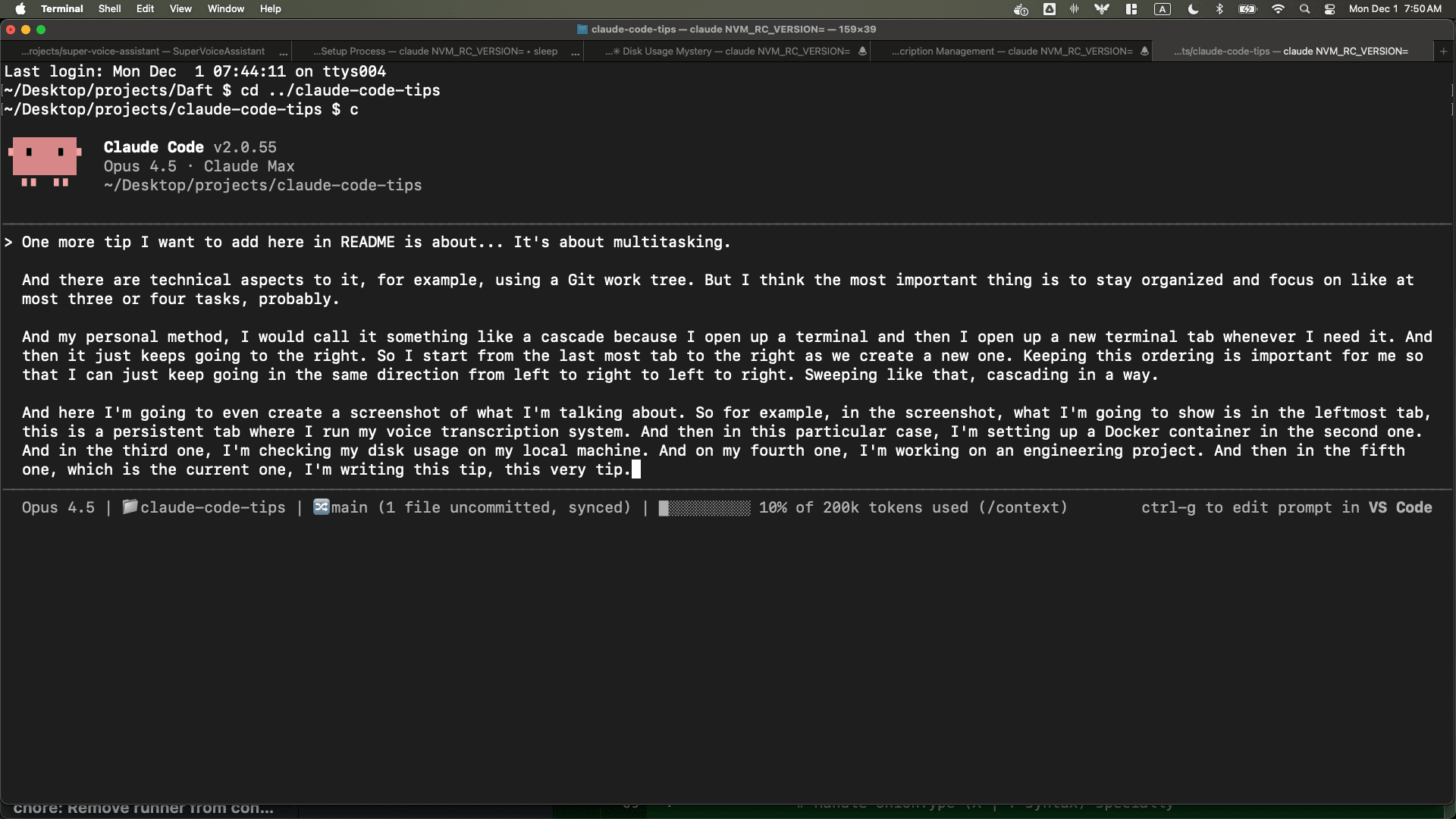
Nutze einen „Kaskaden"-Ansatz — jede neue Aufgabe öffnet einen neuen Tab rechts daneben. Arbeite von links nach rechts, von der ältesten zur neuesten Aufgabe, und schau nach Bedarf vorbei.
Tipp 14: Verschlanke den System-Prompt
Der System-Prompt und die Tools von Claude Code verbrauchen ~18k Tokens (~9 % deines 200k-Kontexts), bevor du überhaupt anfängst zu arbeiten. Mit Patches lässt sich das auf ~10k Tokens reduzieren — eine Einsparung von ca. 7.300 Tokens (41 % des statischen Overheads).
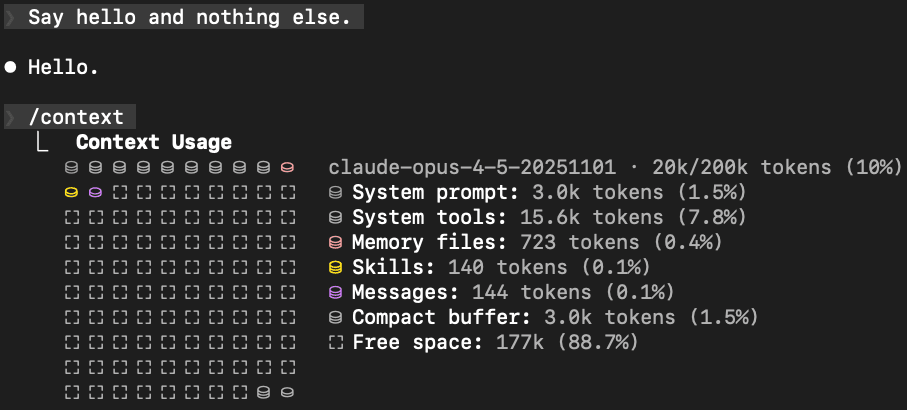
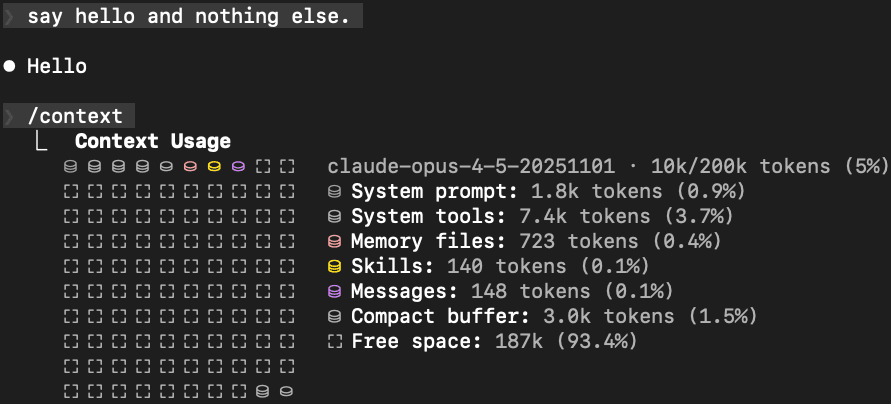
Die Patches kürzen ausführliche Beispiele und redundanten Text, behalten aber die wesentlichen Anweisungen bei. Es fühlt sich direkter und kraftvoller an — mehr Platz, bevor der Kontext voll ist, was längere Konversationen ermöglicht.
MCP-Tools per Lazy-Loading laden
Wenn du MCP-Server nutzt, werden deren Tool-Definitionen standardmäßig in jede Konversation geladen. Aktiviere Lazy-Loading:
{
  "env": {
    "ENABLE_TOOL_SEARCH": "true"
  }
}
Füge das in ~/.claude/settings.json ein. Ab Version 2.1.7 geschieht das automatisch, sobald die MCP-Tool-Beschreibungen 10 % des Kontextfensters überschreiten.
Tipp 15: Git Worktrees für parallele Branch-Arbeit
Arbeitest du gleichzeitig an mehreren Branches? Mit Git Worktrees kannst du in separaten Verzeichnissen an unterschiedlichen Branches arbeiten — ohne Konflikte. Bitte Claude Code einfach, einen anzulegen — du musst dir die Syntax nicht merken.
Kombiniere Worktrees mit der Kaskaden-Tab-Methode für maximale Parallelität.
Tipp 16: Manueller exponentieller Backoff für lange Jobs
Wenn du auf Docker-Builds oder GitHub-CI wartest, bitte Claude Code, den Status in immer größeren Intervallen zu prüfen — eine Minute, zwei Minuten, vier Minuten und so weiter.
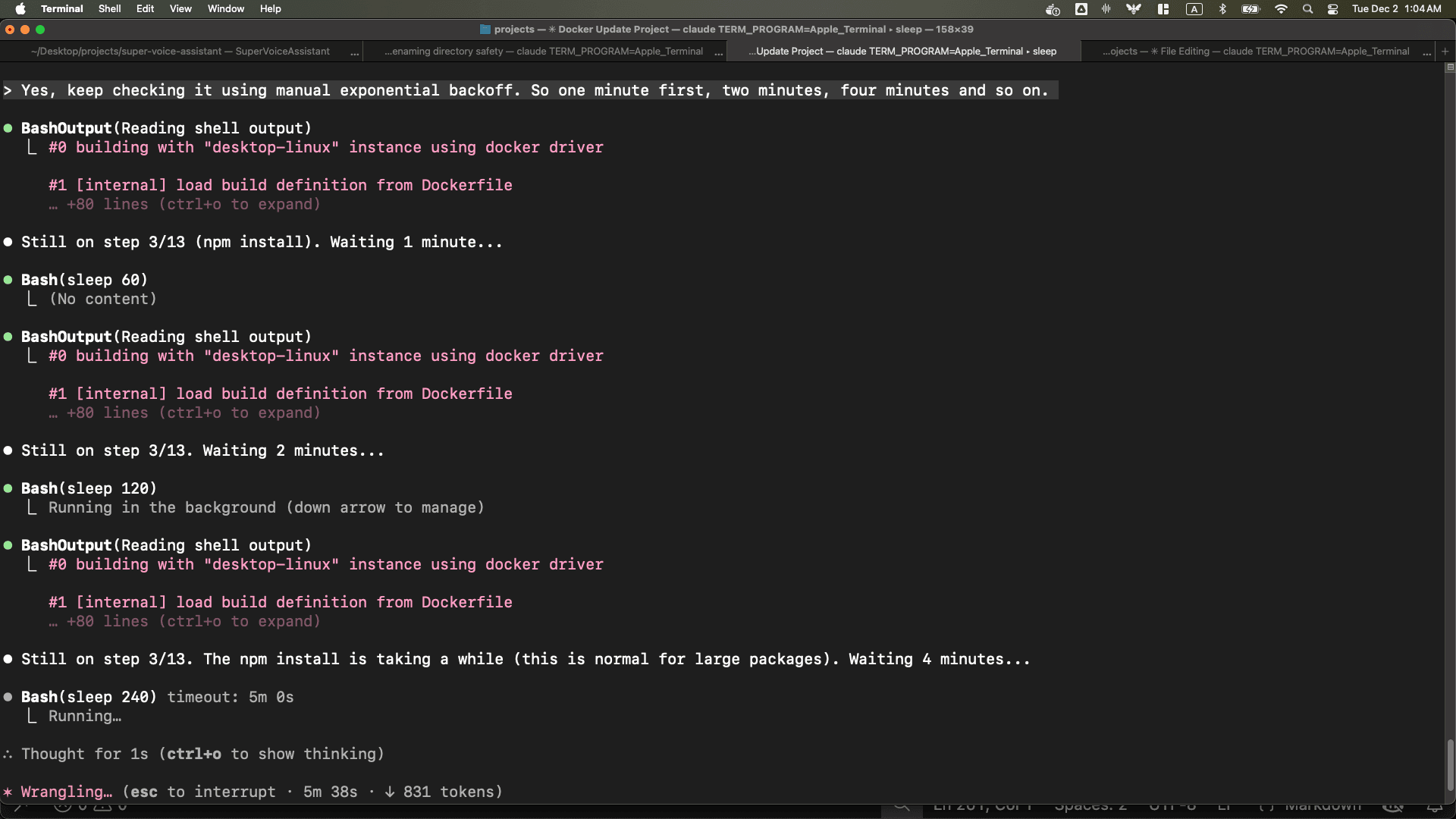
Speziell bei GitHub-CI gibt gh run watch durchgehend viele Zeilen aus, was Tokens verschwendet. Manueller Backoff mit gh run view <run-id> | grep <job-name> ist token-effizienter.
Tipp 17: Claude Code als Schreibassistent
Claude Code ist ein hervorragender Schreibpartner. Der Workflow:
- Gib ihm Kontext zu dem, was du schreiben willst
- Liefere detaillierte Anweisungen per Sprache
- Hol dir einen ersten Entwurf
- Geh ihn Zeile für Zeile durch — „Diese Zeile gefällt mir", „Verschieb diesen Abschnitt dorthin", „Ändere diesen Teil"
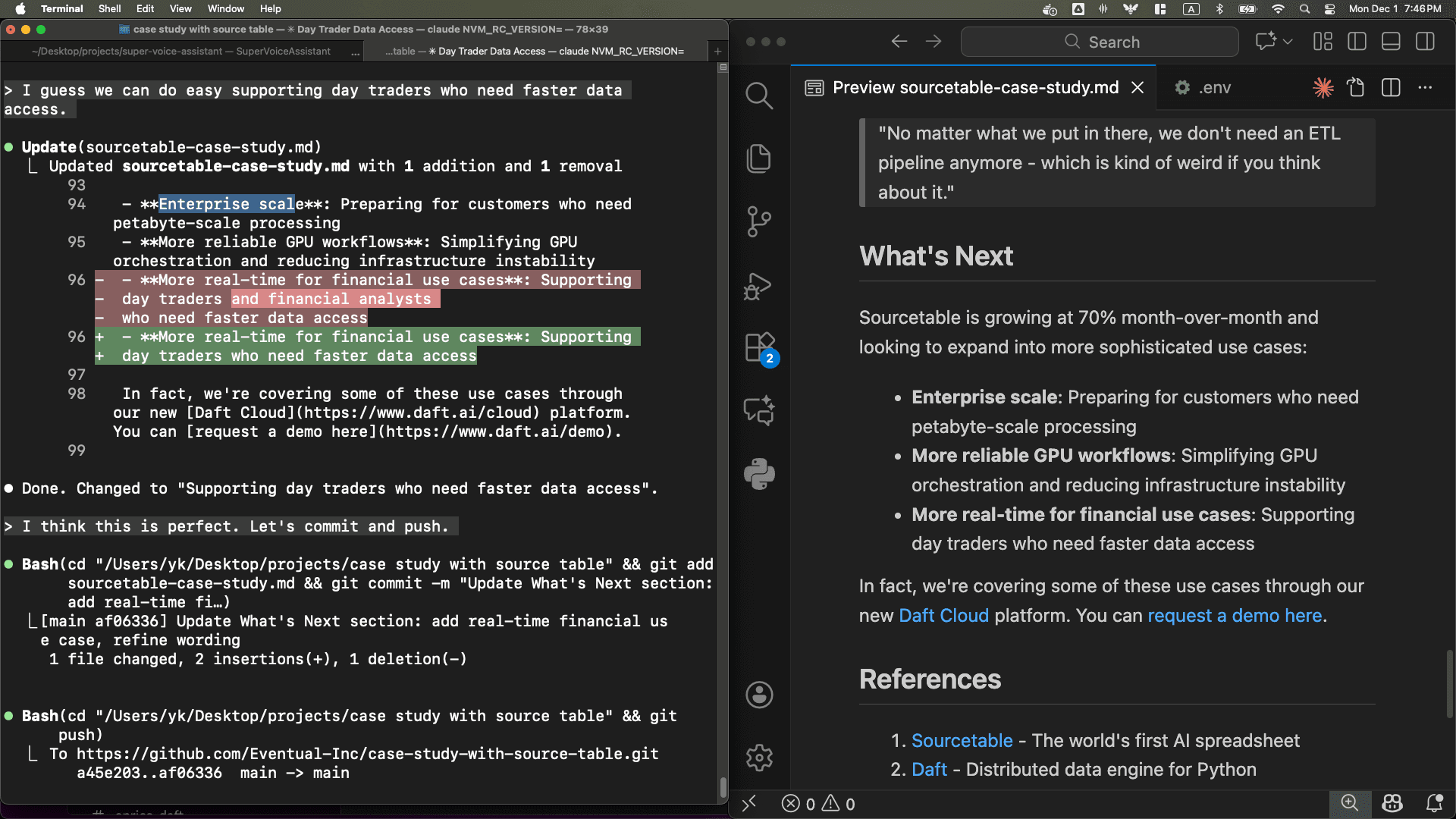
Der iterative Hin-und-Her-Prozess — Terminal links, Editor rechts — liefert überraschend gute Ergebnisse.
Tipp 18: Markdown ist König
Mit den Schreibfähigkeiten von Claude Code wird Markdown zum effizientesten Dokumentformat. Blogposts, LinkedIn-Posts, Dokumentation — mit Claude Code sprechen, als Markdown speichern, weiterarbeiten.
Tipp am Rande: Wenn du Markdown in eine Plattform einfügen musst, die es nicht unterstützt, füge es zuerst in Notion ein und kopiere es von dort in die Zielplattform. Notion konvertiert es in ein kompatibles Format.
Tipp 19: Nutze Notion, um Links beim Einfügen zu erhalten
Andersherum funktioniert es auch. Wenn du Text mit Links aus Slack oder anderen Apps hast, füge ihn zuerst in Notion ein und kopiere ihn von dort weiter — so bekommst du sauberes Markdown mit Links, das Claude Code lesen kann.
Tipp 20: Container für lange, riskante Aufgaben
Containerisierte Umgebungen sind ideal für Sessions mit --dangerously-skip-permissions. Nutze sie für Recherche, Experimente und alles, was lange dauert oder Risiken birgt.
Eine Worker-Instanz orchestrieren
Geh noch einen Schritt weiter, indem dein lokales Claude Code per tmux eine andere Instanz innerhalb eines Containers steuert:
- Das lokale Claude Code startet eine tmux-Session
- Es verbindet sich mit dem Container
- Im Container läuft Claude Code mit
--dangerously-skip-permissions - Die äußere Instanz nutzt
tmux send-keysundcapture-panezur Kommunikation
Das ergibt einen vollständig autonomen Worker für experimentelle oder langlaufende Aufgaben — abgeschottet in einem Container.
Multi-Modell-Orchestrierung
Lass verschiedene KI-CLIs in Containern laufen — Codex, Gemini CLI usw. Claude Code wird zur zentralen Schnittstelle, die alles koordiniert: Modelle starten, Daten zwischen Containern und deinem Host weiterreichen.
Tipp 21: Der beste Weg zum Lernen ist das Tun
Stell es dir wie eine Milliarden-Token-Regel statt einer 10.000-Stunden-Regel vor. Der beste Weg, Intuition für KI aufzubauen, besteht darin, Tokens zu verbrauchen. Nutze es. Viel. Mehrere Sessions gleichzeitig.
Tipps und Guides helfen, aber nichts ersetzt praktische Erfahrung.
Tipp 22: Konversationen klonen, um Alternativen auszuprobieren
Willst du einen anderen Ansatz ausprobieren, ohne deinen ursprünglichen Thread zu verlieren? Claude Code unterstützt jetzt natives Forking:
/fork— Forkt die aktuelle Session aus einer Konversation heraus--fork-session— In Kombination mit--resumeoder--continue(z. B.claude -c --fork-session)
Füge einen Shortcut für das Flag hinzu:
claude() {
  local args=()
  for arg in "$@"; do
    if [[ "$arg" == "--fs" ]]; then
      args+=("--fork-session")
    else
      args+=("$arg")
    fi
  done
  command claude "${args[@]}"
}
Jetzt forkt c -c --fs und setzt die Konversation in einem einzigen Befehl fort.
Half-Clone zur Reduzierung des Kontexts
Wenn eine Konversation zu lang wird, behält ein Half-Clone nur die spätere Hälfte — das senkt die Token-Nutzung und bewahrt gleichzeitig die jüngsten Arbeitsschritte.
Tipp 23: Nutze realpath für absolute Pfade
Wenn du Claude Code auf Dateien in anderen Verzeichnissen verweist, verwende realpath, um den vollständigen absoluten Pfad zu bekommen:
realpath some/relative/path
Simpel, erspart aber viel Verwirrung.
Tipp 24: CLAUDE.md vs. Skills vs. Slash Commands vs. Plugins
Diese Features können verwirrend sein. Hier die Aufschlüsselung:
- CLAUDE.md — Wird immer in jede Konversation geladen. Einfach, aber stets präsent. Gut für Projektkontext und persistente Anweisungen
- Skills — Wie strukturierte CLAUDE.md-Dateien, aber nur bei Bedarf geladen. Token-effizienter. Können automatisch oder manuell aufgerufen werden
- Slash Commands — Ähnlich wie Skills, aber in erster Linie dafür gedacht, vom Nutzer zu einem bestimmten Zeitpunkt aufgerufen zu werden
- Plugins — Pakete, die Skills, Slash Commands, Agents, Hooks und MCP-Server bündeln können
Skills und Slash Commands sind in den jüngsten Versionen näher zusammengewachsen. Der entscheidende Trade-off bleibt: immer geladen (CLAUDE.md) vs. bei Bedarf (Skills/Commands).
Tipp 25: Interaktive PR-Reviews
Claude Code glänzt bei PR-Reviews. Hol dir die PR-Infos mit gh und geh sie dann beliebig durch — allgemeiner Überblick, Datei für Datei oder im Detail durch bestimmte Abschnitte.
Der entscheidende Vorteil: Das Review ist interaktiv. Kein One-Shot-Review, sondern ein Gespräch, bei dem du Tempo und Tiefe steuerst.
Tipp 26: Claude Code als Recherche-Tool
Claude Code ist ein mächtiges Recherche-Tool. Egal ob du GitHub-Actions-Fehler untersuchst, Sentiment-Analysen durchführst, Codebasen erkundest oder öffentliche Informationen durchforstest — Claude Code kommt damit klar.
Entscheidend ist, ihm die richtigen Zugangswege zu geben: gh für GitHub, Container für riskante Operationen, Gemini CLI für blockierte Seiten, MCP für Slack und andere Dienste, Cmd+A für manuellen Inhaltstransfer.
Tipp 27: Verifiziere Output auf mehreren Wegen
Verlass dich nicht auf eine einzige Verifikationsmethode:
- Tests — Lass Claude Tests für seinen eigenen Code schreiben und ausführen
- Visueller Diff — Nutze einen Git-Client wie GitHub Desktop, um Änderungen zu überprüfen
- Draft-PRs — Erstelle Draft-PRs und prüfe sie, bevor du sie als bereit markierst
- Selbstprüfung — Bitte Claude, seine Arbeit zu überprüfen: „Verifiziere jede Behauptung, die du aufgestellt hast, und erstelle eine Tabelle mit dem, was du bestätigen konntest"
Tipp 28: Claude Code als DevOps-Ingenieur
Bei CI/CD-Fehlern kann Claude Code Logs durchforsten, deren manuelle Auswertung schmerzhaft wäre. Gib ihm einen fehlgeschlagenen GitHub-Actions-Run und bitte ihn, die Ursache zu finden.
Hak nach, wenn er nur oberflächliche Antworten liefert — war es ein bestimmter Commit? Ein flaky Test? Ein Dependency-Problem? Sobald die Ursache identifiziert ist, lass ihn einen Draft-PR mit dem Fix erstellen.
Tipp 29: Halte CLAUDE.md schlicht
Beginne ganz ohne CLAUDE.md. Füge erst dann Anweisungen hinzu, wenn du merkst, dass du dasselbe wiederholt sagst. Lass Claude Code seine eigene CLAUDE.md auf Basis deiner mündlichen Anweisungen bearbeiten — es weiß genau, was zu ändern ist.
Weniger ist mehr. Jedes Token in der CLAUDE.md wird in jede Konversation geladen.
Tipp 30: Claude Code als universelle Schnittstelle
Claude Code ist nicht nur ein Coding-Tool — es ist eine universelle Schnittstelle zu deinem Computer. Schnelle Video-Bearbeitung über ffmpeg, Audio-Transkription mit Whisper, Datenvisualisierung mit Python — und mit Internetzugang sind die Möglichkeiten endlos.
Es ist eine Rückkehr zur Text-Schnittstelle, aber jeder Terminal-Tab ist jetzt ein autonomes Gehirn, an das du Arbeit delegieren kannst. Je besser die Modelle werden, desto mehr lästige Aufgaben kannst du auslagern.
Tipp 31: Wähle die richtige Abstraktionsebene
Es ist keine binäre Entscheidung zwischen „Vibe Coding" und „sorgfältigem Engineering" — es ist ein Spektrum.
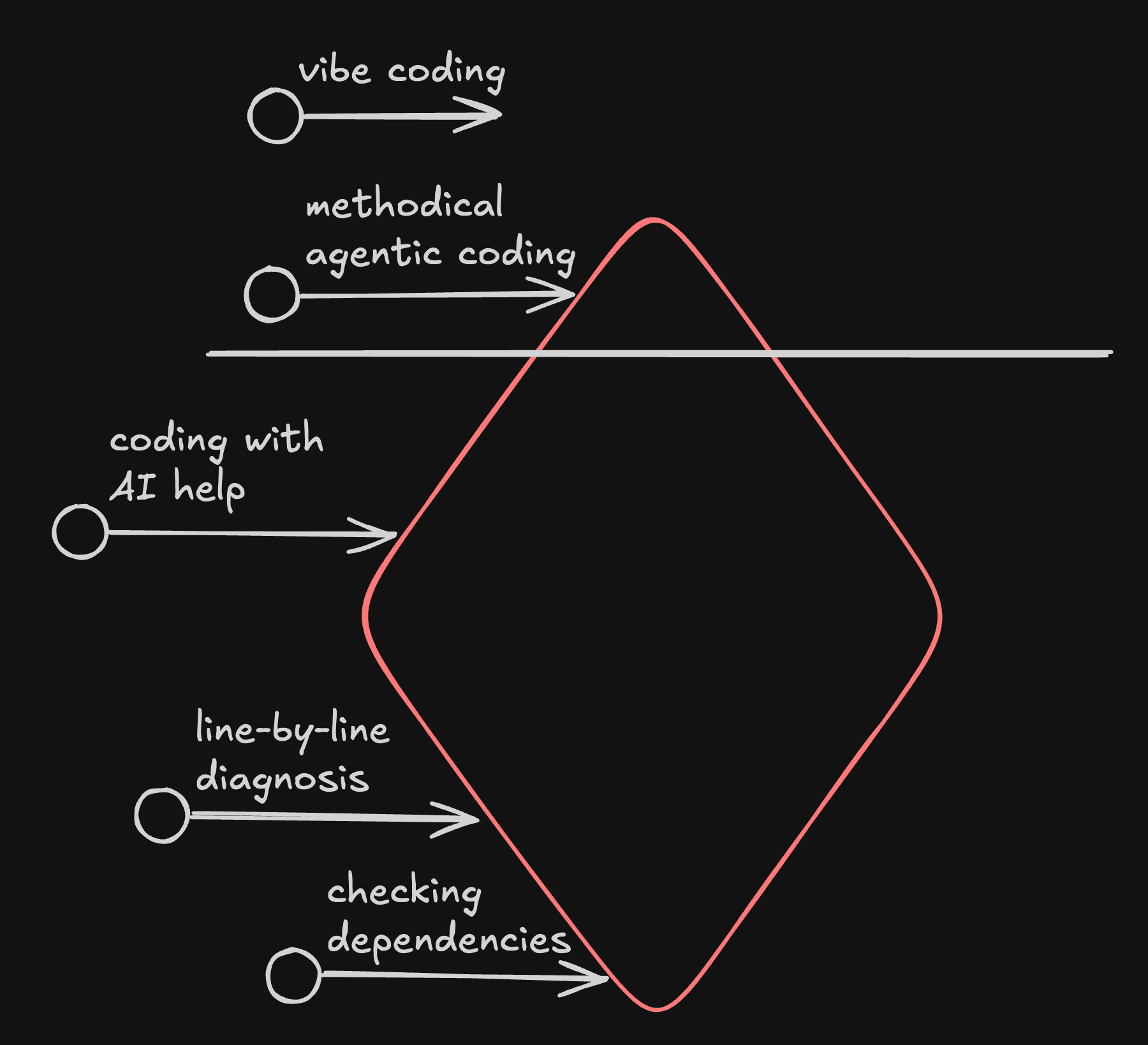
Manchmal reicht es, über die Oberfläche zu fliegen — Einmalprojekte, unkritischer Code. In anderen Fällen musst du tiefer gehen: Dateistrukturen inspizieren, einzelne Funktionen, bestimmte Zeilen, Abhängigkeiten.
Stell es dir wie das Erkunden eines Eisbergs vor. Du wählst die Tiefe. Claude Code ist dein Guide auf jeder Ebene.
Personal Finance für Entwickler – Ein Leitfaden
Die wichtigsten Konzepte der persönlichen Finanzplanung, die jeder Entwickler kennen sollte – vom Notgroschen bis zum Index-Investing.
Was ist Vibe Coding?
Vibe Coding ist ein neuer Ansatz in der Softwareentwicklung, bei dem man KI per natürlicher Sprache anleitet, Software zu bauen.
Related Articles